🚀 Quick Verdict / Top Pick
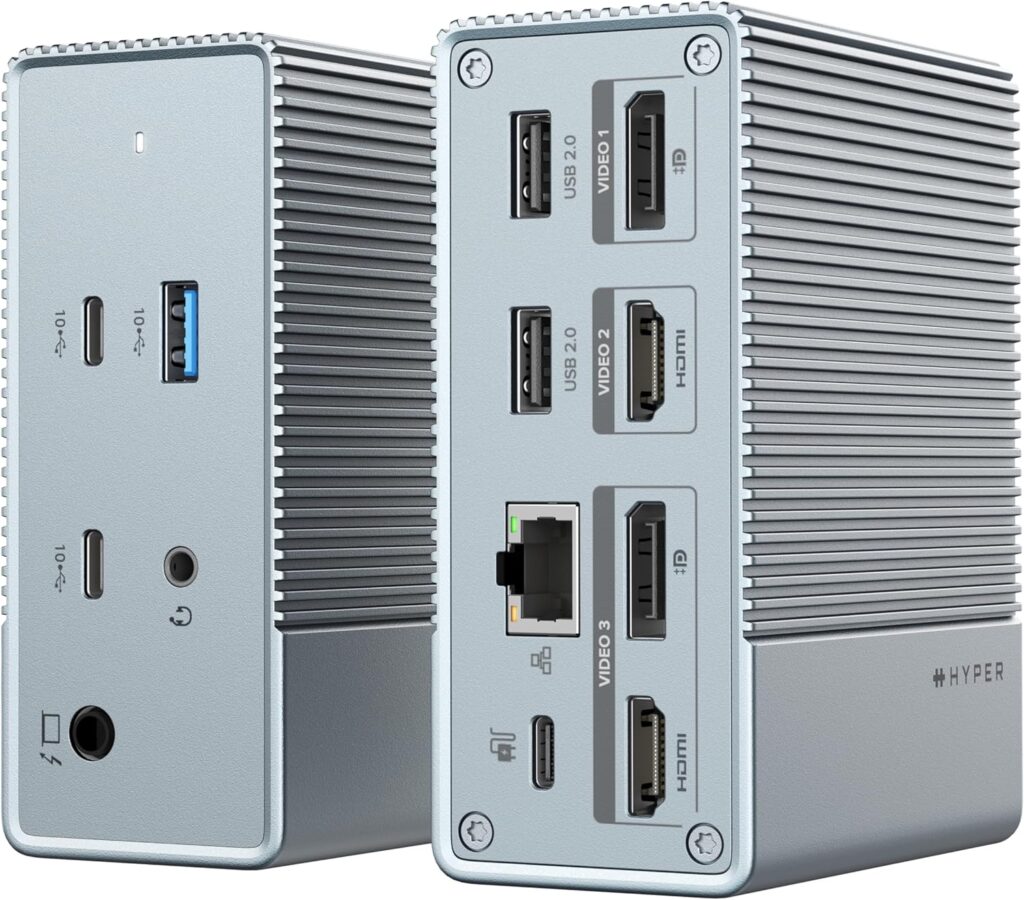
Hyperdrive USB-C & Thunderbolt 4 GEN 2 12-in-1 Docking Station
It stands out by offering the full 40Gbps speed of Thunderbolt 4 and a massive 12-port selection, making it the only true all-in-one desktop solution in the lineup.
Choosing the right connectivity solution for your desk setup in 2025 can be confusing. The thunderbolt 4 dock vs usb c hub debate comes down to three key factors: speed, video output, and power. This guide breaks down the technology and reviews the top options to help you decide if you need the 40Gbps power of Thunderbolt or if a versatile USB-C hub is enough for your workflow. We’ll examine the core specs to see which device truly fits your needs.
| Product | Max Data Speed | Max Video Output | Best For |
|---|---|---|---|
| Plugable 7-in-1 USB C Hub | 10Gbps | Single 4K@60Hz | On-the-Go Laptop Users |
| OWC Thunderbolt Hub | 40Gbps | Dual 4K@60Hz | Expanding Thunderbolt Ports |
| Hyperdrive 12-in-1 Dock | 40Gbps | Dual 4K@60Hz | The Ultimate All-in-One |
| Plugable 5-in-1 Thunderbolt 4 Hub | 40Gbps | Dual 4K@60Hz | Minimalist Thunderbolt Expansion |
Detailed Reviews 2025
Plugable 7-in-1 USB C Hub Multiport Adapter
Pros
- Highly portable and lightweight
- Affordable price point
Cons
- Limited to 10Gbps data speeds
- Single external monitor support only
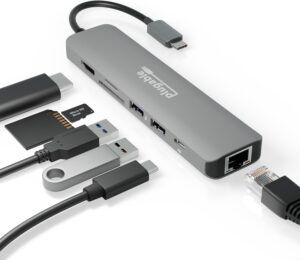
The Breakdown: This hub represents the USB-C side of the debate. It’s a compact, bus-powered adapter perfect for adding essential ports like USB-A, HDMI, and SD card readers to a modern laptop. It’s designed for portability and convenience over raw performance.
Key Specs:
- Max Data Speed: 10Gbps (USB 3.2 Gen 2)
- Max Video Output: 1x 4K @ 60Hz
- Laptop Power Delivery: Up to 87W (passthrough, requires external charger)
- Key Ports: 1x USB-C (PD), 2x USB-A, 1x HDMI, SD/microSD, Ethernet
The Community Verdict: Users consistently praise its compact size and reliability for everyday tasks. Some power users, however, note limitations with single-display output and data speed caps when transferring large files.
Dealbreaker: Skip this if you need to run two or more external monitors or require the fastest possible transfer speeds for video editing or large backups.
OWC Thunderbolt Hub Docking Station
Pros
- Adds three additional Thunderbolt 4 ports
- Rock-solid build quality
Cons
- Limited legacy port selection
- Modest 60W power delivery
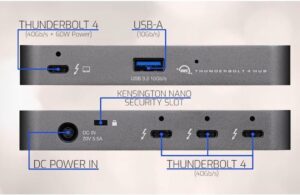
The Breakdown: This isn’t a dock in the traditional sense; it’s a Thunderbolt 4 hub. Its primary purpose is to turn one Thunderbolt port on your laptop into three, plus a USB-A port. It’s ideal for daisy-chaining high-speed storage and displays.
Key Specs:
- Max Data Speed: 40Gbps
- Max Video Output: Dual 4K @ 60Hz or Single 5K/6K/8K
- Laptop Power Delivery: Up to 60W
- Key Ports: 4x Thunderbolt 4, 1x USB-A (10Gbps)
The Community Verdict: Consensus is that the build quality is exceptional and it performs exactly as advertised for expanding Thunderbolt connectivity. A common critique is the 60W power delivery, which may not be enough to charge larger laptops under heavy load.
Dealbreaker: Skip this if your primary need is a wide variety of legacy ports like HDMI, SD card readers, or Ethernet.
Hyperdrive USB-C & Thunderbolt 4 GEN 2 12-in-1 Docking Station
Pros
- Massive 12-port selection
- Full 40Gbps speed and 96W Power Delivery
Cons
- Premium price point
- Larger physical footprint
The Breakdown: The Hyperdrive represents the pinnacle of docking stations, blending the best of both worlds. It offers the full 40Gbps bandwidth and dual-display support of Thunderbolt 4, along with a comprehensive array of 12 ports for ultimate connectivity. This is a true desktop replacement.
Key Specs:
- Max Data Speed: 40Gbps
- Max Video Output: Dual 4K @ 60Hz
- Laptop Power Delivery: Up to 96W
- Key Ports: 2x TB4 Downstream, 1x USB-C, 2x USB-A, 2x HDMI, SD/microSD, Ethernet, Audio Jack
The Community Verdict: Market research indicates this is a highly-rated solution for users wanting a no-compromise dock. Owners frequently praise the 96W power delivery and extensive port selection. The higher cost is the most common point of hesitation for potential buyers.
Dealbreaker: Skip this if you have a simple setup or are on a tight budget; its features would be overkill.
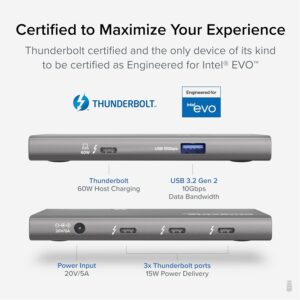
Plugable 5-in-1 Thunderbolt 4 Hub
Pros
- Compact and minimalist design
- Certified Thunderbolt 4 performance
Cons
- Only 60W power delivery
- No legacy ports (HDMI, SD)
The Breakdown: Very similar in function to the OWC hub, the Plugable TBT4-HUB3C offers a clean way to expand your laptop’s Thunderbolt capabilities. It turns one port into three, maintaining the full 40Gbps speed and display capabilities of the protocol. Its focus is purely on expanding the modern Thunderbolt ecosystem.
Key Specs:
- Max Data Speed: 40Gbps
- Max Video Output: Dual 4K @ 60Hz or Single 8K
- Laptop Power Delivery: Up to 60W
- Key Ports: 4x Thunderbolt 4, 1x USB-A (10Gbps)
The Community Verdict: Users consistently report flawless performance with Thunderbolt accessories and displays. Like the OWC, some wish for higher power delivery, but its reliability and compact form factor are frequently highlighted as major positives.
Dealbreaker: Skip this if you need to connect non-Thunderbolt/USB-C devices like older peripherals, HDMI monitors, or SD cards without using additional adapters.
Buying Guide: How to Choose in 2025
Speed is King: 40Gbps vs 10Gbps
The core difference is bandwidth. Thunderbolt 4 provides a massive 40Gbps pipeline, essential for video editors transferring 8K footage or anyone using high-speed external NVMe SSDs. A standard USB-C hub typically maxes out at 10Gbps, which is perfectly adequate for web browsing, office documents, and connecting standard peripherals like mice and keyboards.
The Multi-Monitor Question
This is a critical distinction. A certified Thunderbolt 4 port can drive two 4K displays at a smooth 60Hz. Most USB-C hubs, on the other hand, can only support a single external display, and sometimes at a lower 30Hz refresh rate. If a multi-monitor setup is crucial for your productivity, Thunderbolt 4 is the clear winner.
Power, Ports, and Price
Do you want one cable to do everything? Look for a dock with high Power Delivery (PD)—at least 65W for most laptops, and 85W or more for power-hungry machines like a 16-inch MacBook Pro. Also, take an honest inventory of the ports you need. Don’t pay a premium for a 12-port Thunderbolt dock if a simple 3-port hub will suffice. The price gap is significant, so choose based on your actual workflow.
Choose a USB-C Hub if: You prioritize portability, have a simple single-monitor setup, and are on a budget.
Choose a Thunderbolt 4 Dock if: You are a power user, need to drive multiple 4K monitors, require maximum data transfer speeds, and want a single-cable desktop setup.
Frequently Asked Questions
Can I use a Thunderbolt 4 dock with a standard USB-C port?
Yes, but it will operate at the lower speed of the USB-C port (e.g., 10Gbps). You will not get the full 40Gbps bandwidth or the guaranteed dual-monitor capabilities unless the port on your computer is specifically a Thunderbolt 3 or 4 port.
Do all USB-C cables work with Thunderbolt 4 docks?
No. To get the full 40Gbps speed and all features, you must use a certified Thunderbolt 4 cable (or an active Thunderbolt 3 cable). A standard USB-C charging or data cable will severely limit the performance. Quality docks and hubs almost always include the correct cable in the box.
Is Thunderbolt 4 worth the extra cost in 2025?
For creative professionals, developers, and anyone with a high-performance multi-monitor setup, absolutely. The speed and display capabilities are game-changers for productivity. For casual users who just need to connect a mouse and a single extra monitor, a more affordable USB-C hub is often the smarter financial choice.
Read More on TechForDesk
- Best Under Desk Keyboard Tray Clamp On Models for 2026 (Ergonomic Review)
- The Best Laptop Stand for Eye Level in 2026
- The Best Lumbar Support Pillow for Office Chair Models of 2026
- The Best ZSA Moonlander Alternative in 2026: An Ergonomic Deep Dive
- Finding the Best Tenting Kit for Split Keyboard in 2025